If your iPad will not charge, gets hot while it is plugged in, or dies within an hour or two, the cause is usually one of a few things: a weak cable or adapter, a dirty or damaged charging port, a software glitch, or a worn-out lithium-ion battery. The good news is that most charging problems are not the battery at all, and you can rule the cheap causes out yourself in a few minutes. This guide walks through those checks in the order a technician would, the signs that the battery really is worn out, and when a battery replacement (or a new iPad) makes sense.
Start here: is it the charger, the port, or the battery?
Before you assume the battery is dead, change one thing at a time and re-test after each step:
- Swap the cable. Charging cables fail constantly, and a bad one can look perfect. Try a different cable you know works.
- Swap the adapter and use enough power. iPads draw far more power than phones, so a small 5W phone charger may barely keep one awake. Use a 20W or higher wall adapter, ideally the one your iPad came with, plugged straight into a wall outlet rather than a laptop, hub, or power strip.
- Look in the port. Pocket lint packs into the charging port and blocks the connector. Shine a light in and check before anything else.
- Give a dead iPad time. If the battery hit zero, the screen can stay black for several minutes before the charging icon appears, so leave it plugged in a while before you panic.
This charger-first triage is the same on any device. If it is actually an iPhone you are troubleshooting, our iPhone not charging guide walks through each step in detail.
Why an iPad stops charging or charges slowly
When an iPad refuses to charge or crawls to full, the usual suspects are:
- A worn or off-brand cable, or a low-power adapter that cannot feed the tablet
- Lint, dust, or corrosion inside the charging port
- A software hiccup that leaves the iPad frozen or misreading the battery
- Temperature, since iPads slow or pause charging when they are too hot or too cold
- A degraded battery that can no longer hold or accept a charge properly
The first four are cheap or free to fix; only the last calls for a replacement, so work through the steps below first.
Troubleshooting steps to try first
Run these in order and re-test after each:
- Use the right charger. A 20W or higher adapter in a known-good wall outlet, with a cable you trust. Skip wireless pads and hubs for this test.
- Clean the port gently. Power the iPad off and ease out lint with a wooden or plastic toothpick or a soft brush. Never use a metal pin, and never use liquid inside the port.
- Force restart the iPad. On models with Face ID (no Home button), press and release Volume Up, press and release Volume Down, then hold the Top button until the Apple logo appears. On models with a Home button, hold the Top and Home buttons together until the logo shows.
- Let it reach room temperature. If the iPad is hot from the sun or a car, or cold from outside, let it settle before charging. It may refuse to charge until it does.
- Update iPadOS. A pending or interrupted update can cause odd charging and battery behavior. Install what is waiting under Settings, General, Software Update.
- Charge undisturbed for 30 minutes. Leave it alone on a wall charger and watch for the charging bolt on the battery icon.
If the iPad still will not hold a charge after all of this, the battery or the port hardware is the likely cause.
Why your iPad overheats while charging
Some warmth during charging or heavy use is normal. It becomes a problem when the iPad gets too hot to hold comfortably, runs hot while idle, or shows an on-screen temperature warning. Common causes include:
- Gaming, video calls, or streaming while the iPad charges
- Charging in direct sun or a hot car
- A thick case that traps heat around a fast charger
- Heavy background activity right after an update or restore
- A failing or swollen battery, which is the serious one
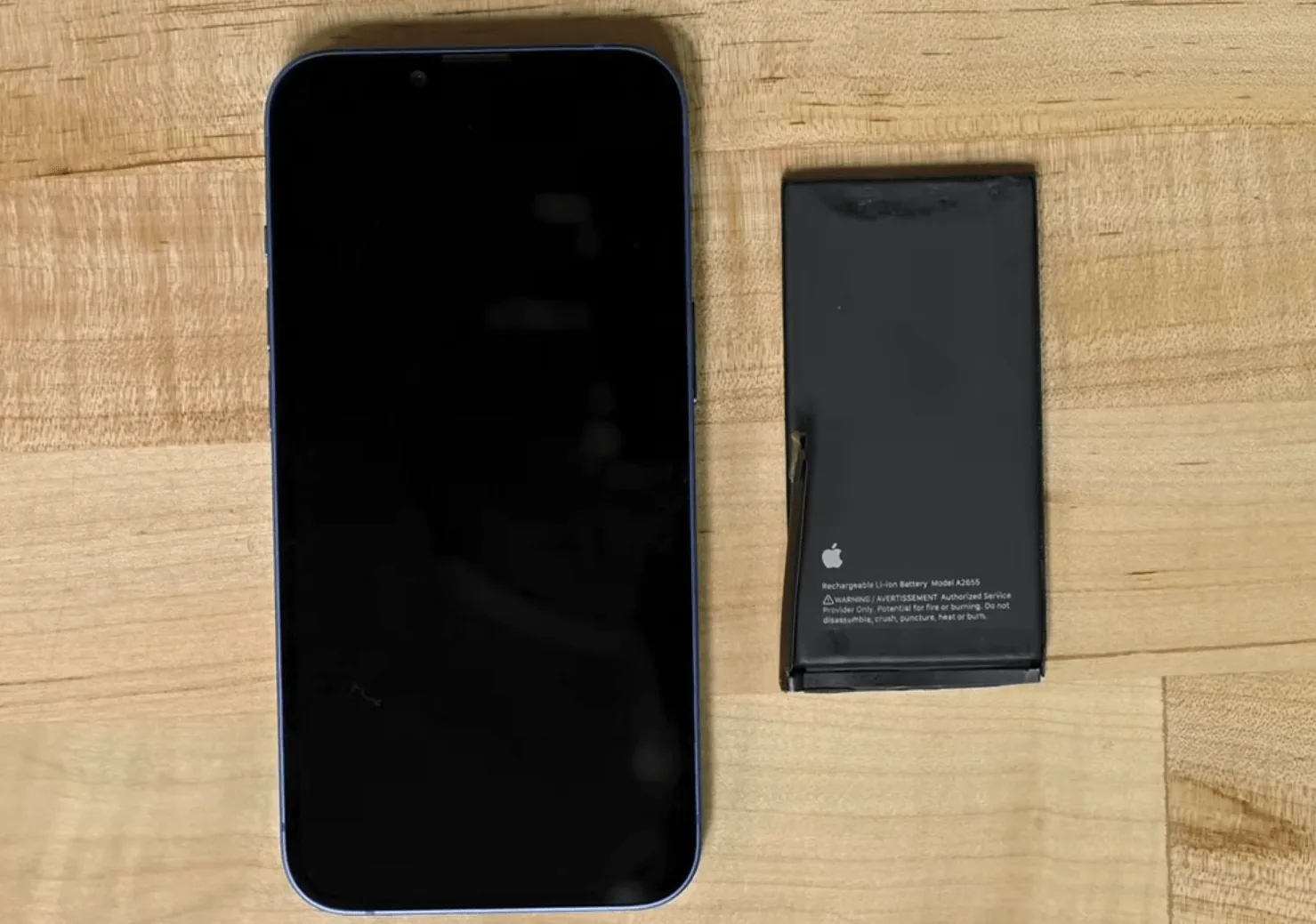
If the back or screen feels like it is bulging or the glass is lifting at an edge, stop immediately. That is a swelling battery. Unplug it, power it down if you can, keep it somewhere cool and away from anything flammable, and have it looked at right away.
Signs your iPad battery is worn out
Batteries are consumable parts, and most iPad batteries start fading after two to three years of daily use. It is likely time for a replacement when you notice several of these together:
- The iPad only runs while it is plugged in and dies the moment you unplug it
- Runtime has collapsed, dropping to an hour or two on a full charge
- It shuts off suddenly while still showing 20 to 40 percent
- The battery percentage jumps around or freezes
- It overheats during normal use or ordinary charging
- The screen or back panel is lifting or bulging (swelling)
- The iPad is several years old and has been charged heavily its whole life
When to replace the battery vs. the whole iPad
An iPad battery replacement almost always costs far less than a new tablet, so the battery is usually the smart fix. If your iPad still runs the apps you need and the only real issue is charging or runtime, a fresh battery restores full life and buys years more use.
Lean toward a new device only when the iPad is very old, cannot run a current version of iPadOS, has other major faults, or the repair would approach the price of a comparable replacement. If you are unsure, a technician can test the battery, port, and board and tell you which one is failing before you spend a cent.
Where to get iPad battery and charging repair in Orlando
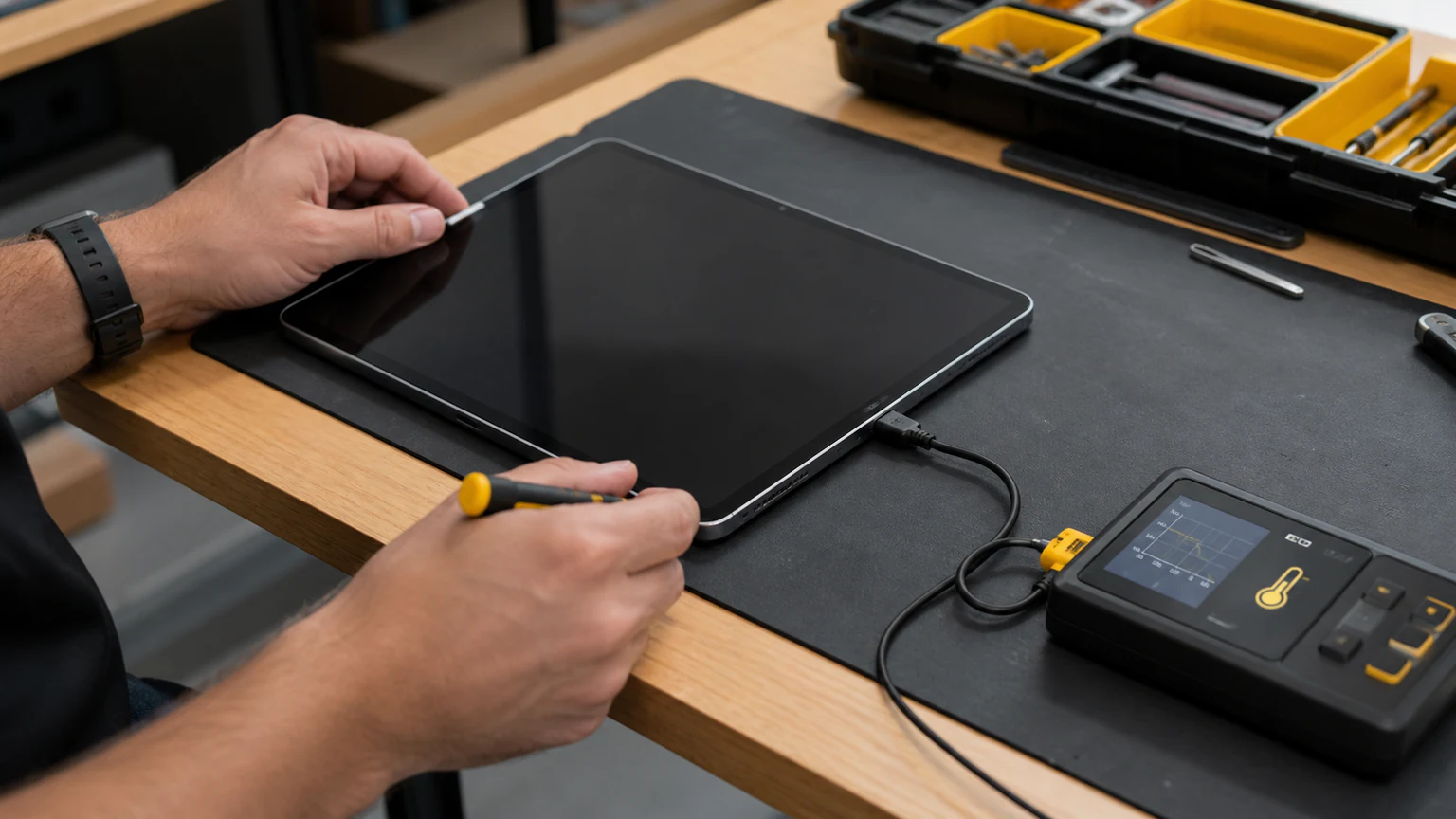
If the fix is beyond DIY, URPhone Store tablet repair covers iPad battery replacement, charging port repair, and the diagnosis in between at all three Orlando locations. This is not a safe do-it-yourself job: iPad batteries are glued in beneath a bonded screen, and prying on a swollen battery risks a puncture and fire.
Bring the iPad in and we will tell you whether it is the battery, the port, or something on the board, with a quote before any work starts. The diagnostic is free, the price depends on your iPad model, and repairs are usually done the same day when parts are in stock. Every repair carries a 1-year warranty on parts and labor (does not cover new accidental or liquid damage after the repair). We work on Apple iPads and Samsung tablets among other devices.
Ready to get it fixed? Call (321) 300-2023 or book online. We are open Mon-Sat 9 AM-9 PM and Sun 10 AM-9 PM at all three Orlando stores.