Your iPhone battery is a consumable part, and how you charge, cool, and use it decides whether it stays healthy for years or fades in months. The short version: keep the charge roughly between 20% and 80%, turn on Optimized Battery Charging, keep the phone out of the heat, and install iOS updates. Do those four things and you slow the chemical aging that every lithium-ion battery goes through. The rest of this guide explains why each habit matters, how to read your battery health number, and how to tell when a battery is simply too worn to save.
What "battery health" actually means: life vs. lifespan
Two different things get called "battery life," and taking care of yours is easier once you separate them.
- Battery life is how long the phone runs on a single charge. It changes day to day based on screen brightness, signal strength, and what your apps are doing.
- Battery lifespan is how long the battery lasts before it needs replacing. Every lithium-ion battery slowly loses capacity as it goes through charge cycles (one cycle equals a full 100% of charge used, whether that happens in one charge or several partial top-ups).
Apple rates older iPhone batteries to keep up to 80% of their original capacity through about 500 charge cycles. The iPhone 15 and newer are rated to hold 80% through roughly 1,000 cycles. Good habits do not stop aging, but they slow it, so you reach those thresholds later rather than sooner.
Check your battery health first
Before you change anything, see where you stand. Go to Settings > Battery > Battery Health & Charging. The Maximum Capacity number is your battery's current capacity compared to when it was new. A brand-new battery reads 100%; as it ages, that number falls.
- Above 80%: your battery is considered healthy.
- At or near 80%: you may start noticing shorter run time. Apple treats this as the point where a battery is significantly worn.
- Well below 80%: expect fast drain and possible unexpected shutdowns, especially in the cold.
That same screen tells you whether Peak Performance Capability is normal. If iOS has started managing performance to prevent shutdowns, the battery is struggling under load. On the iPhone 15 and later, the screen also shows a Cycle Count - the number of full charge cycles the battery has been through - which is useful context, especially on a used or hand-me-down phone. Checking this screen once a month tells you whether your habits are working, and it warns you before the battery gives out entirely.
Charge habits that actually matter
Keep it in the 20% to 80% range
Lithium-ion batteries are happiest in the middle of their range. Draining to 0% and charging all the way to 100% both stress the cells, and sitting at a full 100% for hours (overnight, for example) keeps the battery under the most strain. Topping up in smaller bites - plugging in around 30% and pulling off near 80% - is gentler than one deep 0-to-100 cycle. You do not have to obsess over this; the goal is to avoid the extremes, not to babysit a percentage all day.
Turn on Optimized Battery Charging
Optimized Battery Charging (in the same Battery Health & Charging menu) learns your daily routine and holds the charge at 80% until just before you normally unplug, so the battery spends less time sitting full. Leave it on. On the iPhone 15 and later you can go further and set a hard 80% charge limit if you rarely need a full tank.
Overnight charging is fine, with the feature on
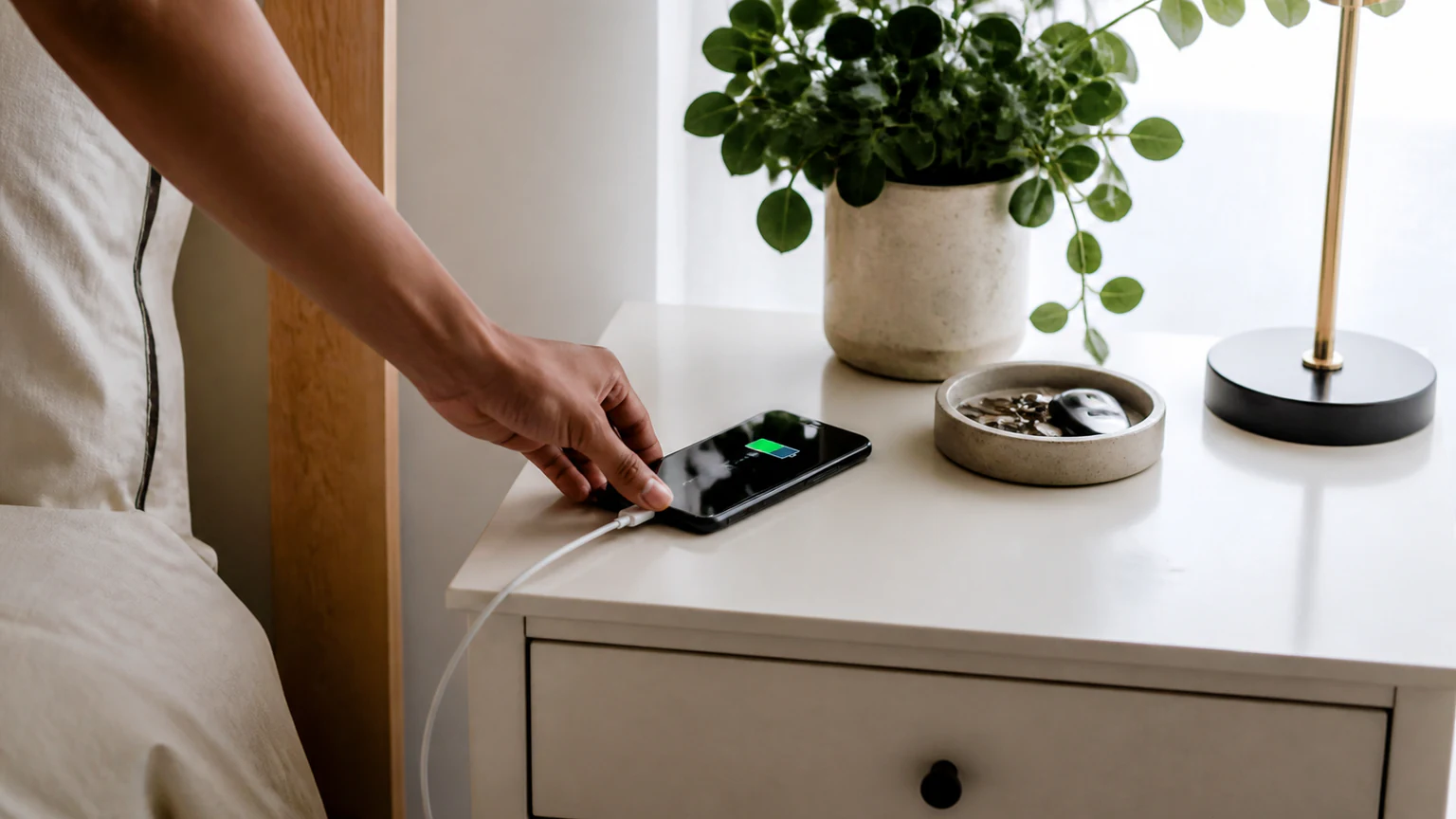
Charging overnight is not the battery-killer it used to be, as long as Optimized Battery Charging is enabled, because the phone deliberately delays that last 20% until morning. What you do want to avoid is charging under a pillow or inside a thick case that traps heat while it powers up.
Skip the sleeping-laptop charge
Plugging into a laptop that is asleep or off can push power in and out inefficiently and, on some machines, slowly drain the phone instead of charging it. Use a wall adapter or a powered USB port whenever you can.
Use a quality charger and cable
You do not need Apple's own brick, but you do want gear that is properly regulated. Look for Apple or MFi-certified cables and a charger from a reputable brand. Cheap, uncertified chargers can deliver unregulated power or run hot, and heat is exactly what you are trying to avoid. Modern GaN chargers are a good pick because they are compact and tend to run cooler than older designs. Wireless charging is fine for convenience, but it usually generates more heat than a cable, so it is not the best choice for an all-night charge on a warm nightstand.
Heat is the real battery killer
If you only change one thing, protect the phone from heat. High temperature is the fastest way to permanently reduce capacity, and unlike a low charge, that damage does not come back.
- Apple's comfort zone is roughly 62 to 72 degrees Fahrenheit (about 16 to 22 degrees Celsius). Brief trips outside that range are fine; sustained heat is the problem.
- Above about 95 degrees Fahrenheit (35 degrees Celsius) - a car dashboard in the Florida sun clears that easily - can permanently damage capacity. Never leave your iPhone in a parked car.
- Cold works differently: extreme cold can cut run time and trigger sudden shutdowns, but capacity usually returns once the phone warms up. Heat is the one that leaves a scar.
- If the phone gets hot while charging, take the case off. A thick or poorly ventilated case can trap enough heat to matter during a charge or a long gaming session.
Charging and demanding tasks (gaming, GPS navigation, 4K video) both generate heat, so try not to stack them. Navigating with the phone charging on a hot dashboard is close to a worst case.
Cut the background drain
These settings mostly stretch battery life per charge, which also means fewer full charge cycles over time - a small lifespan win on top of a big day-to-day one.
Screen brightness and Auto-Brightness
The display is usually the single largest power draw. Lowering brightness a notch, or leaving Auto-Brightness on (Settings > Accessibility > Display & Text Size) so the screen matches the room, saves a meaningful amount over a day. On the OLED screens in recent iPhones, Dark Mode helps too.
Background App Refresh and Location Services
Apps that refresh in the background or track your location constantly are quiet, steady drains.
- Background App Refresh: turn it off for apps that do not need live updates (Settings > General > Background App Refresh).
- Location Services: set nonessential apps to "While Using" instead of "Always" (Settings > Privacy & Security > Location Services).
You do not need to force-quit apps from the app switcher to save power - iOS already freezes apps you are not using, and reopening a fully closed app can actually use more energy. Manage the two settings above instead.
Low Power Mode
Low Power Mode is your fast lever when the charge runs low. iOS offers it at 20%, and it trims background activity, mail fetch, and some visual effects while dimming the screen. You can switch it on any time from Settings > Battery or the Control Center. Running it during a long day out reduces how often you drop into a deep discharge.
Prefer Wi-Fi over cellular
Wi-Fi generally uses less power than cellular data, and a weak cellular signal is especially draining because the phone ramps up its radio to hold the connection. On solid Wi-Fi, the phone sips power by comparison.
Keep iOS updated
Software updates are an easy, hands-off way to protect the battery. Apple regularly ships power-management improvements, fixes for battery-draining bugs, and charging optimizations through iOS updates. Install them from Settings > General > Software Update. A single misbehaving app or an old iOS bug can wreck your run time, and an update is often the fix - so it is worth ruling out before you assume the hardware is done.
Common iPhone battery myths
A few pieces of old advice do more harm than good on a modern iPhone:
- "Drain it to 0% before charging." That was true for old nickel-based batteries, not lithium-ion. Deep discharges actually stress today's cells; partial top-ups are better for them.
- "Never use the phone while it charges." Using it is fine. The only thing to watch is heat, so skip heavy gaming or navigation while it is plugged in and already warm.
- "Any charger will instantly ruin the battery." A quality certified charger is fine at any speed, because the iPhone controls how fast it draws power. The risk comes from cheap, unregulated bricks, not from fast charging itself.
- "Closing all my apps makes the battery last longer." It does not, and it can waste power reloading them a moment later. Let iOS manage background apps and lean on the settings above instead.
- "Storing a spare phone full or empty is fine." For long-term storage, Apple suggests roughly 50% charge. A battery left empty can slip into a deep discharge it never recovers from, and one stored full ages faster.
When your battery is beyond saving
Habits slow aging; they cannot reverse it. At some point the cells are simply worn out and no setting will bring the capacity back. Signs it is time to replace the battery:
- Maximum Capacity has dropped to around 80% or below.
- The phone shuts down suddenly, often while it still shows 20% to 40%, or in cold weather.
- It drains unusually fast even after you have tuned your settings and updated iOS.
- iOS shows a "Service" message or has started throttling performance to prevent shutdowns.
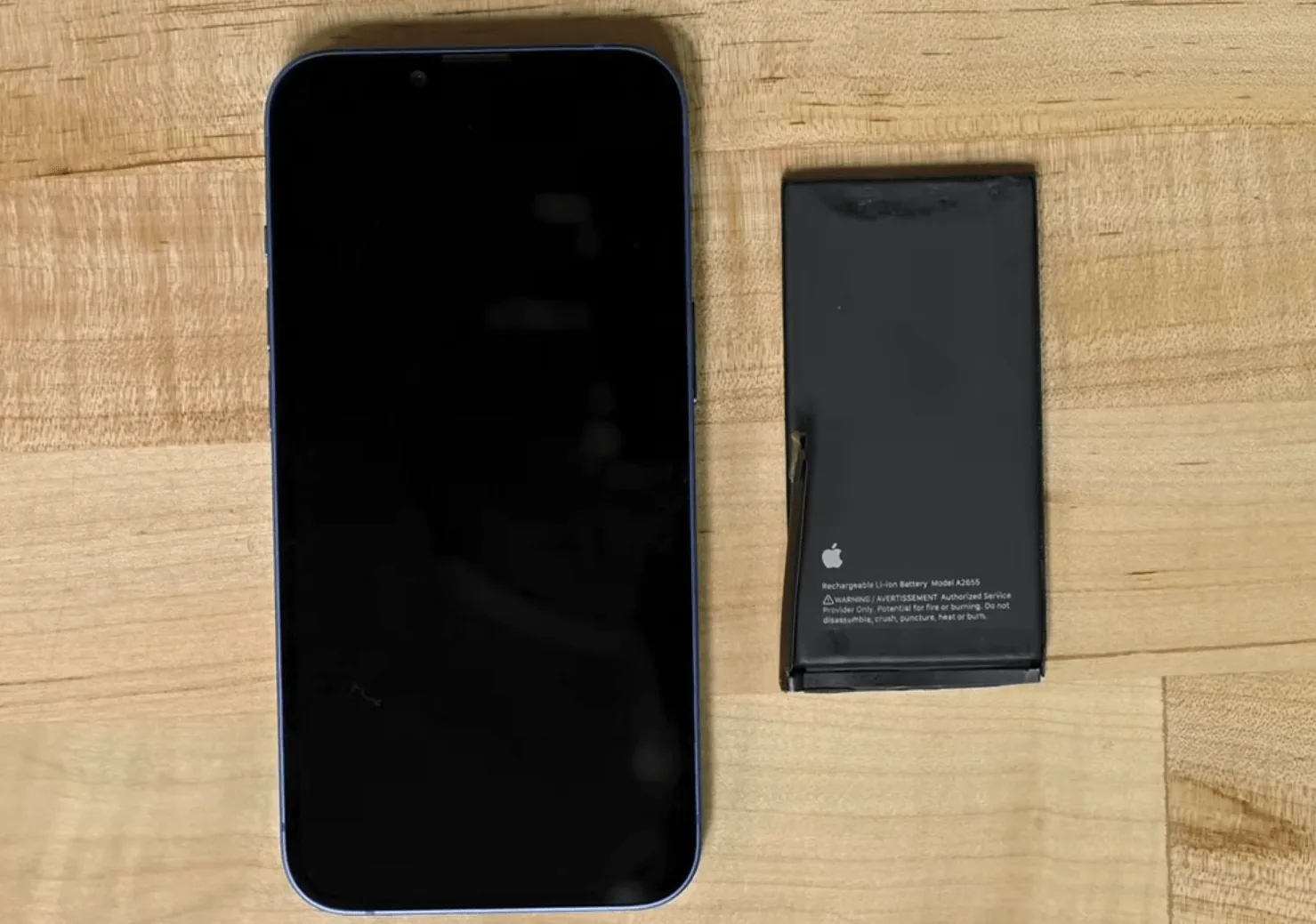
- The battery is physically swollen and the screen or back panel is lifting. Stop using the phone and have it looked at - a swollen battery is a safety issue, not just a capacity one.
A fresh battery makes an otherwise good iPhone feel new again, and it costs far less than replacing the whole phone. If you are comfortable with small electronics, our step-by-step iPhone 13 battery replacement guide walks through the DIY process. For most people, though, a professional swap is the safer call - the adhesive, the delicate connectors, and the swollen-battery risk are all easy to get wrong.
At URPhone Store, we handle iPhone battery replacement when your battery health is too low to save, using quality parts and backed by a 1-year warranty on parts and labor (this does not cover new accidental or liquid damage after the repair). Pricing runs from $40, depending on model, and most replacements are finished the same day when parts are in stock. Want the whole device checked over rather than just the battery? Our team also handles iPhone repair in Orlando across our three locations, and the diagnostic quote is free.
Ready to bring it in? Call (321) 300-2023 or book a repair online.