
How to Fix Lines on iPhone Screen: A Complete Troubleshooting Guide
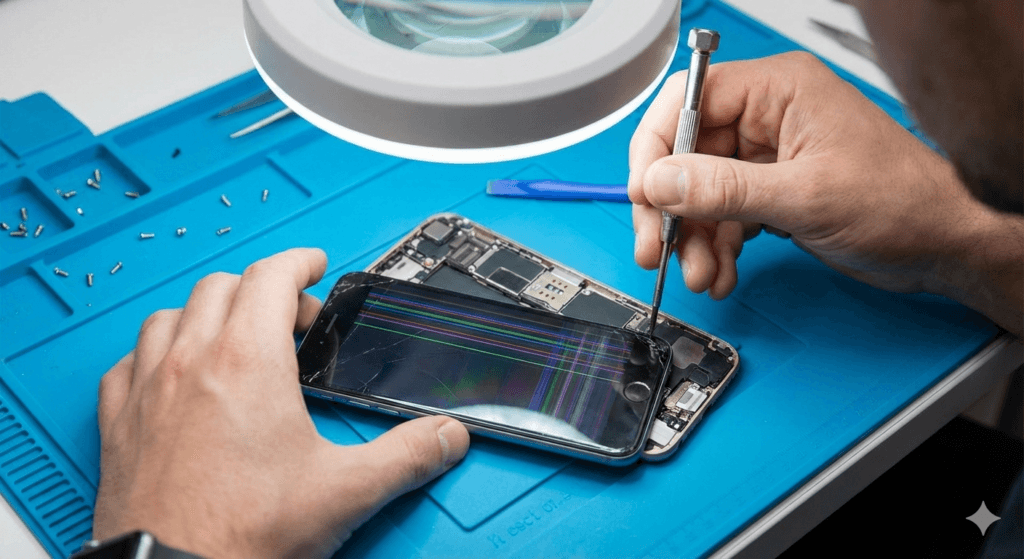
If you’re seeing lines on your iPhone screen, whether they are horizontal, vertical, or diagonal, it can be frustrating. These lines might appear due to software glitches, physical damage, or even a hardware malfunction. In this guide, we’ll walk you through the steps to troubleshoot and fix lines on your iPhone screen, helping you restore your device to its normal state.
Step 1: Check for Software Issues
Before jumping to conclusions, it’s important to rule out software-related problems. Sometimes, a simple software issue can cause strange lines to appear on the screen. Here’s how you can troubleshoot:
Restart Your iPhone
- Hold down the power button and swipe to turn off your iPhone.
- Turn it back on after a few seconds.
Restarting can resolve minor software glitches that may be causing the lines on your screen.
Update iOS
- Go to Settings > General > Software Update.
- If an update is available, install it.
Updating to the latest version of iOS can fix bugs and improve your iPhone’s performance.
Reset Settings
If restarting or updating doesn’t work, try resetting your iPhone settings:
- Go to Settings > General > Reset.
- Select Reset All Settings (Note: This will not delete your data, but it will reset system settings such as Wi-Fi passwords).
Step 2: Test for Hardware Problems
If the lines on your iPhone screen remain after a software fix, it might be a hardware issue. Here are the common causes of hardware-related screen lines:
Physical Damage
If your iPhone has been dropped or exposed to pressure, the screen’s connection to the internal components may be disrupted, causing lines to appear.
Screen Malfunction
If your screen is damaged, it can lead to issues like dead pixels or faulty display connections. In this case, your iPhone might require professional attention.
Step 3: Try to Fix the Problem Yourself
If you’re comfortable with DIY solutions, you can attempt to fix the issue before contacting a professional repair service. However, be careful not to cause further damage.
Clean Your Screen
Dirt, debris, or moisture between the screen and glass can sometimes cause lines. Clean your iPhone screen with a microfiber cloth to remove any particles.
Try a Hard Reset
A hard reset can help resolve some display issues:
- For iPhone 8 or newer, quickly press and release the volume up button, then the volume down button, and press and hold the side button until the Apple logo appears.
- For older iPhones, press and hold the Home and Power buttons until the Apple logo appears.
Step 4: Professional iPhone Screen Repair
If none of these methods work, it’s time to seek help from a professional. A damaged iPhone screen can be repaired by experts who can replace faulty parts or perform a more in-depth diagnostic. For those in areas like Orlando, finding reliable services for iPhone screen repair in Orlando is an easy option, and technicians can provide a thorough assessment. If you’re uncertain, a certified repair center can be a great resource for getting your device back to working condition.

1. Why are there vertical lines on my iPhone screen?
2. How do I know if my iPhone screen is damaged?
3. Can I fix the lines on my iPhone screen myself?
4. How much does it cost to fix an iPhone screen in Orlando?


About author




Add comment