A flickering iPhone display usually comes down to one of four things: a software glitch, a display setting like Auto-Brightness or True Tone, heat, or a loose or failing screen. The good news is that most flickers caused by software or settings can be fixed at home in a few minutes. A flicker tied to a drop, a cracked panel, or a loose display connector is hardware, and that is when it makes sense to bring the phone in. This guide walks through each cause in order, from the quickest fixes to the ones that need a repair, so you can tell what you are dealing with before you spend anything.
What a flickering iPhone screen looks like
"Flickering" covers a few different behaviors, and the pattern is a clue to the cause:
- Brightness that pulses or fades up and down on its own.
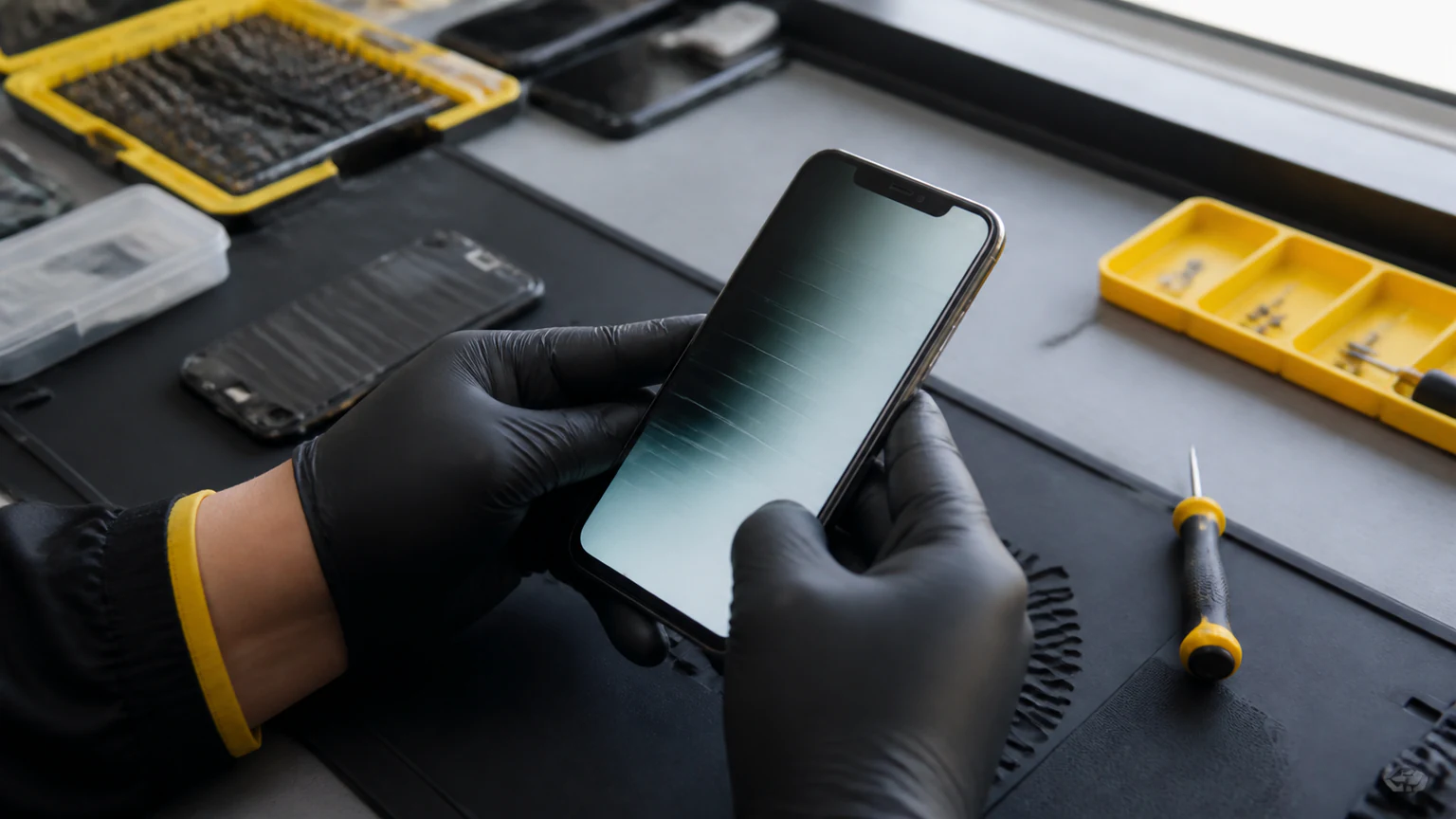
- Flashing horizontal or vertical lines, or a band across the top of the screen.
- The whole screen blinking or strobing, sometimes with a color shift (a green, pink, or gray tint).
- A flicker that shows up only in one app.
- A flicker that gets worse when you press, twist, or tilt the phone.
As a rule of thumb, a flicker that is steady, appears everywhere in iOS, and reacts to nothing physical is usually software or a setting. A flicker that started after a drop, reacts to pressure, or comes with lines, cracks, or discoloration is usually hardware. Work through the steps below in order and stop when the flicker goes away.
Step 1: Rule out a software glitch
Software is the most common and the easiest cause to fix, so start here.
Force restart the iPhone. A force restart clears a frozen graphics process without erasing anything:
- iPhone 8, SE (2nd or 3rd gen), and every Face ID model: press and release Volume Up, press and release Volume Down, then press and hold the Side button until the Apple logo appears.
- iPhone 7 and 7 Plus: hold Volume Down and the Side button together until the logo appears.
- iPhone 6s, SE (1st gen), and earlier: hold the Home button and the Side (or Top) button together.
Update iOS. Go to Settings > General > Software Update and install anything pending. Display glitches are sometimes a known bug that Apple fixes in a point release.
Check whether it is one app. If the flicker only shows up in a single app, update that app, or delete and reinstall it. That points to the app, not your screen.
Reset all settings. If the flicker is system-wide, go to Settings > General > Transfer or Reset iPhone > Reset > Reset All Settings. This clears bad configuration without deleting your photos, messages, or apps.
Restore as a last software step. If it still flickers, back up your data, then restore the iPhone through the Settings app or a computer. A restore that fixes the flicker confirms it was software; a flicker that survives a clean restore points to hardware.
Step 2: Check your display settings
A few settings can create what looks like a flicker, especially in changing light.
Auto-Brightness. When Auto-Brightness constantly adjusts to your surroundings, the screen can appear to pulse. Turn it off under Settings > Accessibility > Display & Text Size > Auto-Brightness, then set the brightness by hand and see if the pulsing stops.
True Tone. True Tone shifts the screen's color temperature to match the room. If you see the color flicker or jump, toggle it off in Settings > Display & Brightness > True Tone.
Low brightness on OLED models. Many iPhones use OLED displays that dim by rapidly pulsing the panel, and some people perceive a faint flicker at very low brightness. Raising the brightness, or turning on Reduce White Point under Settings > Accessibility > Display & Text Size, often makes it easier on the eyes.
If turning these off stops the flicker, you are done, and it was never a hardware problem.
Step 3: Let it cool down
Heat is a real trigger. Apple lists a safe operating range of about 32 to 95 degrees Fahrenheit, and Orlando summers, hot parked cars, and long stretches of gaming or navigation push past that fast. When an iPhone overheats it can dim, flicker, or show a temperature warning before it shuts down to protect itself.
If the phone is hot to the touch:
- Take it out of its case and move it out of direct sun.
- Power it off and let it cool for 15 to 20 minutes.
- Do not charge it while it is hot, since charging adds even more heat.
A flicker that clears once the phone cools was heat-related and usually leaves no lasting damage. A flicker that keeps going after it cools, or that appeared right after the phone got very hot, can mean the heat stressed the display, and that is a hardware issue rather than a setting.
Step 4: When it is the display hardware
If software and settings did not fix it, the flicker is most likely the screen itself. Signs it is hardware include:
- It started after a drop or right after a screen was replaced.
- It reacts when you press, bend, or twist the phone or the screen.
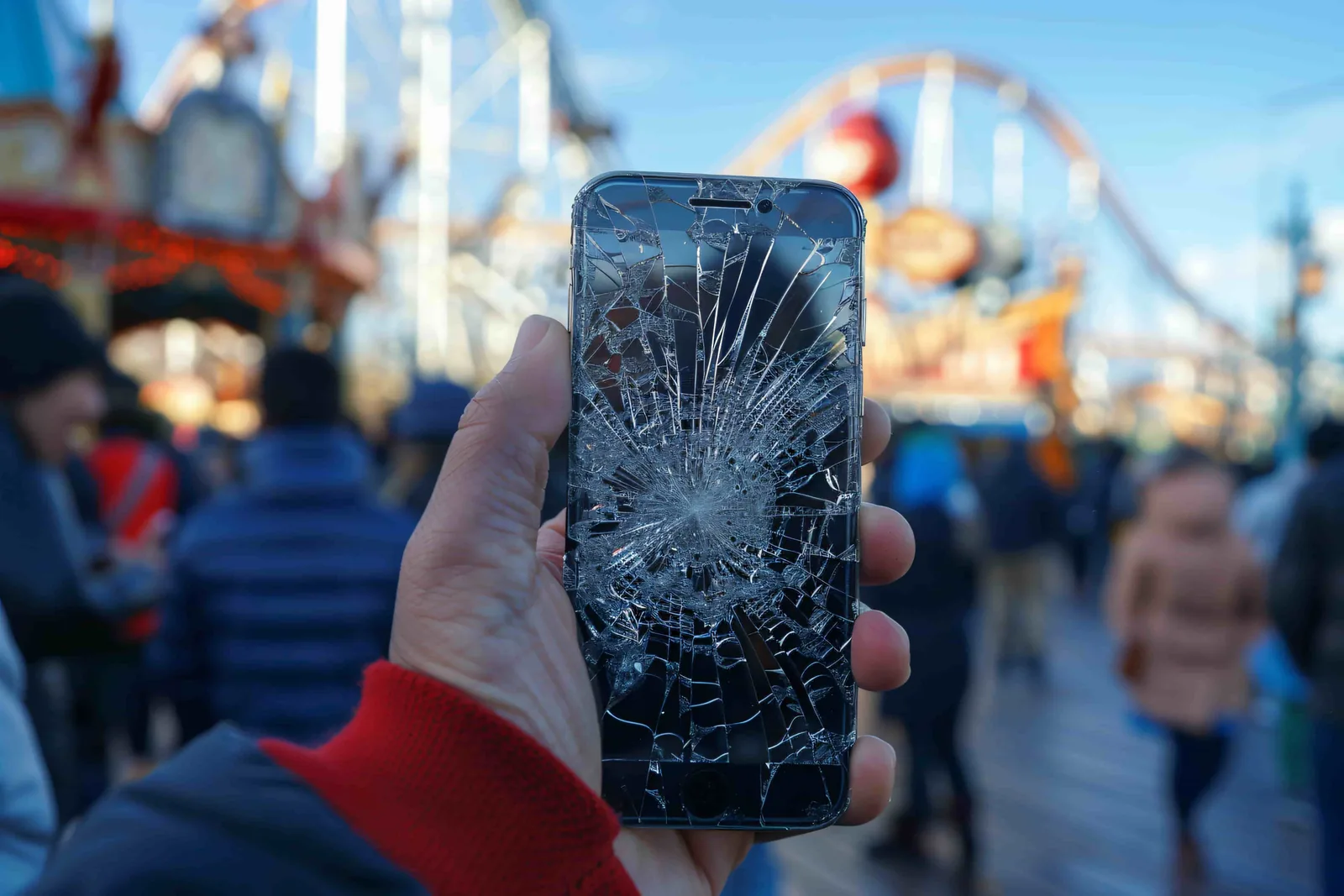
- It comes with cracks, black spots, discoloration, or flashing lines.
- Half the screen flickers or stops responding to touch.
- It survives a full restore.
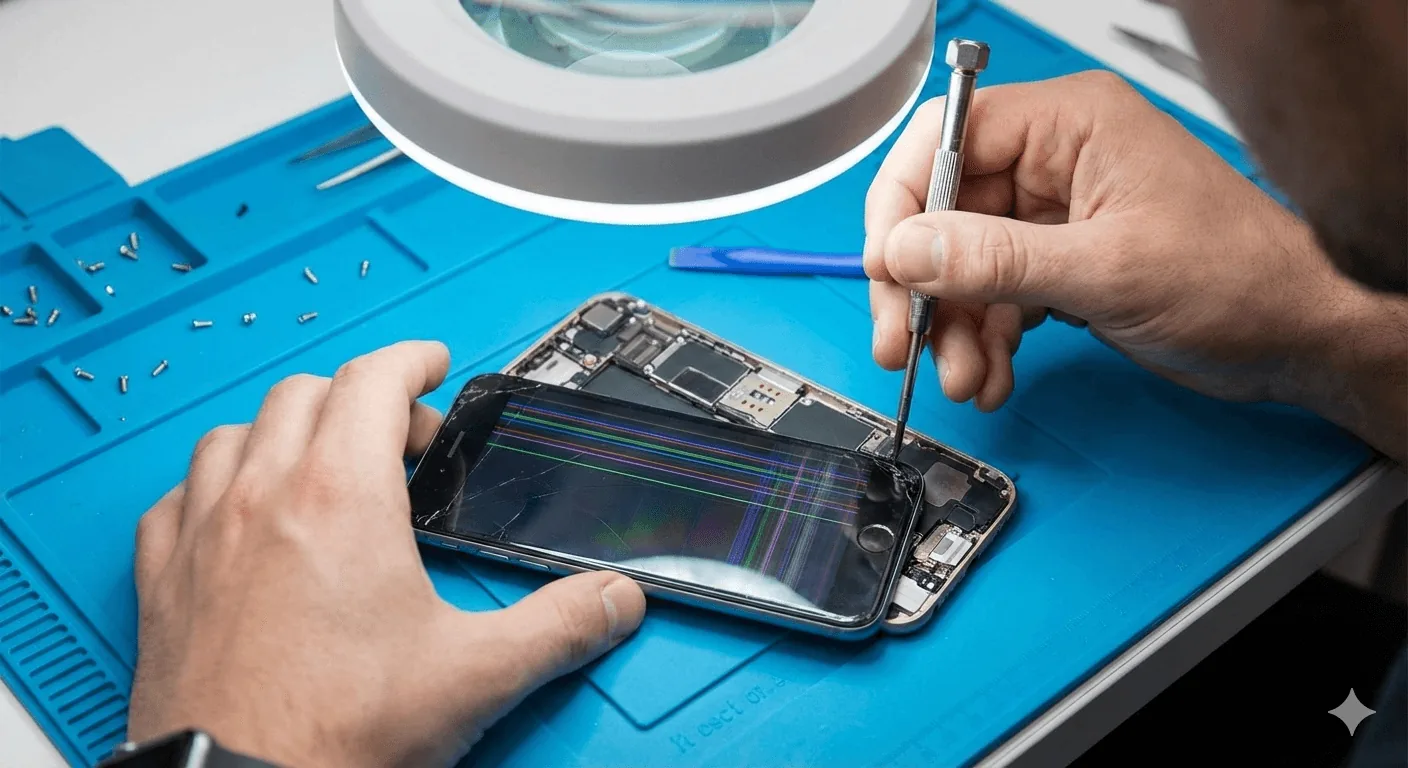
Inside the phone, this is usually a loose or damaged display connector, a failing flex cable, or a worn-out OLED panel. These are common after a drop, after moisture works into the seams, or after a low-quality DIY screen swap where a connector was not seated correctly. None of them can be fixed from the settings menu; the connection or the panel itself has to be repaired.
This is the point to bring it to a technician. A shop can open the phone, reseat or test the display connector, and tell you whether you need a new screen or something deeper on the logic board. If you are local, our iPhone repair in Orlando team diagnoses flickering displays every day and handles iPhone screen repair with quality parts.
How to keep an iPhone screen from flickering again
Once the flicker is fixed, a few habits keep it from coming back. Keep iOS current so display bugs get patched, and keep apps updated too. Protect the phone from heat: skip the dashboard mount in direct sun, and give it a break during heavy gaming or long navigation on hot days. Use a case and a screen protector so a drop is less likely to jar the display connector loose. And if you ever need a screen swapped, use quality parts and a proper install, because a cheap panel or a rushed DIY job is a frequent cause of flicker down the road.
Getting a flickering iPhone fixed in Orlando
If the flicker turns out to be hardware, a screen repair is usually a same-day job when parts are in stock. At URPhone Store, iPhone screen replacement starts from $50, depending on your model, and every repair is backed by a 1-year warranty on parts and labor (this does not cover new accidental or liquid damage after the repair). The diagnostic is free, so if you are not sure whether it is software or the panel, we will find out at no charge before you commit to anything.
To get started, Call (321) 300-2023 or book online through our contact page. We have three Orlando locations open seven days a week, Monday through Saturday 9 AM to 9 PM and Sunday 10 AM to 9 PM, so a flickering screen does not have to wait.