No Sound During Calls? Fixes for Phone Audio and Speaker Problems

Frustrated woman unable to hear during a phone call
On this page

No sound during calls usually traces back to one of a few things: the audio is routed to a Bluetooth device, the earpiece or microphone is blocked by dirt or a case, a software glitch is muting the call, or the earpiece speaker or audio chip has failed. The good news is that most cases are fixed in a couple of minutes without a repair, and this guide walks you through the checks in the order a technician would use them.

Whether you carry a Samsung, an iPhone, or another Android phone, losing sound mid-call is common and frustrating. Everything else on the device can look fine, yet the call goes silent. Work through the steps below before you rush to a repair shop, and you will often solve it yourself. When the fault is hardware, we will show you how to tell, and where to get it fixed fast in Orlando.

Why You Get No Sound During Calls

A silent call has a short list of likely causes. Knowing which one you are dealing with saves you from random fixes:

  • A connected Bluetooth device (headset, watch, earbuds, or car stereo) hijacking the call audio
  • Dust, lint, or a case lip blocking the earpiece speaker or microphone
  • Call volume turned all the way down, or Silent Mode, Do Not Disturb, or Focus muting the audio
  • Outdated software or a firmware glitch after a missed update
  • A misbehaving calling app (Phone, WhatsApp, Messenger) with the wrong permissions
  • A failed earpiece or loudspeaker, a damaged microphone, or a malfunctioning audio IC chip
  • Hardware damage after a drop or moisture exposure

The first six causes are DIY-fixable. The last one is a repair. The triage step below tells you which side of that line you are on.

Earpiece, Loudspeaker, or Bluetooth? Find the Fault First

Before you change a single setting, work out which audio path is failing. A 20-second test points you straight at the problem:

  • You cannot hear the caller with the phone at your ear, but tapping Speaker works: the earpiece (the top speaker you hold to your ear) is the likely fault.
  • Speakerphone, ringtones, and media are silent, but you can hear a caller through the earpiece: the loudspeaker (the bottom speaker) is the likely fault.
  • No sound in either mode, and a headset, watch, or car stereo is paired: the audio is being routed to a Bluetooth device instead of the phone.
  • The caller cannot hear you, but you hear them fine: the microphone, not a speaker, is the problem.

Quick test: call your voicemail or a friend, then tap the Speaker button on and off during the call. If you hear sound in one mode but not the other, you have found the failed part. If you hear nothing in any mode and no Bluetooth device is connected, move through every fix below, then treat it as a possible hardware fault.

Step-by-Step Fixes to Try First

Work through these in order. Most no-sound calls are solved well before the hardware section.

  1. Check call volume and sound settings. Call volume is separate from ringtone volume. Press the volume-up button while you are on an active call to raise the in-call level. Then confirm Silent Mode, Do Not Disturb, and Focus (on iPhone) are all off, and that the ringer and system sounds are not muted.
  2. Turn off Bluetooth and unplug accessories. A previously paired headset, smartwatch, or car stereo can silently grab your call audio. Open Settings and switch Bluetooth off completely (not just from the Control Center or quick tile), remove any wired headphones or dongles, then call again and listen through the earpiece.
  3. Toggle speakerphone during a call. Tapping the Speaker button on and then off forces the phone to re-route the call audio. This alone clears many stuck-audio glitches and confirms whether the earpiece or the loudspeaker is at fault.
  4. Restart the phone. A simple restart clears the temporary software bugs behind a surprising number of audio failures. This is especially worth doing if you have not restarted in weeks.
  5. Remove the case and inspect the screen protector. A thick case lip or a screen protector that overlaps the earpiece slot can muffle or block sound entirely. Take the case off, check that no film is covering the top speaker cutout, and test the call again.
  6. Clean the earpiece, loudspeaker, and microphone. Dust and lint pack into the speaker mesh over time. Gently clean the earpiece (top speaker), the bottom loudspeaker, and the microphone ports with a soft brush, a dry cotton swab, or a short burst of canned air. Never use a pin, needle, or other sharp object, which can puncture the mesh and cause real damage.
  7. Update your software. Install any pending iOS or Android update. Manufacturers routinely patch audio-routing bugs, and running an old build is a common hidden cause.
  8. Test audio in other apps and clear the calling app cache. Play a YouTube video or record a voice memo. If audio works elsewhere, the fault is in the calling app: update the Phone, WhatsApp, or Messenger app, clear its cache on Android, and confirm the app has microphone and speaker permissions enabled.
  9. Rule out a rogue app or a bad setting. On Android, boot into safe mode to see if the sound returns with third-party apps disabled; if it does, a recently installed app is the culprit. On iPhone, Reset All Settings (Settings, General, Transfer or Reset iPhone) returns audio and network settings to default without erasing your data.

iPhone vs. Android: Settings Worth Checking

The DIY steps are similar across phones, but a few platform-specific settings trip people up.

On an iPhone

  • Check Phone Noise Cancellation under Settings, Accessibility, Audio and Visual. Toggling it off and on resolves some muffled-call complaints.
  • A dirty or blocked proximity sensor near the earpiece can confuse call audio, so wipe the top of the screen clean.
  • Make sure Bluetooth is off in Settings itself, not only dimmed in the Control Center, so a paired accessory is not stealing the audio.
  • If sound is still gone after an iOS update, Reset All Settings before assuming hardware failure. On an iPhone with liquid or drop history, skip ahead to the hardware section.

On Samsung and Other Android Phones

  • Open the Phone app settings and confirm no call-audio route (such as a hearing-aid or Bluetooth mode) is forcing sound to another device.
  • Clear the cache of the Phone or Dialer app, then restart. This is one of the most reliable Android fixes for a silent earpiece.
  • If your phone has sound enhancements like Dolby Atmos or Adapt Sound, turn them off temporarily to test whether a sound mod is interfering.
  • Use safe mode to catch a misbehaving app. A quick trip to your device's Samsung repair options is the next step only if cleaning, updates, and safe mode all fail.

Water and Audio: When Moisture Is the Cause

Muffled, crackly, or completely absent call sound right after your phone got wet is one of the most common water-damage symptoms. Water gets trapped in the speaker mesh, and, more seriously, moisture and corrosion attack the audio IC and connectors inside the phone.

If sound quality dropped after a spill, a splash, a dip in the pool, or a stint in a humid pocket, treat it as water damage, not just a dirty speaker. Do not charge a wet phone, and do not blast it with a hair dryer, which drives moisture deeper. A built-in water-eject feature can push surface droplets off the loudspeaker, but it does nothing for internal corrosion, which keeps spreading until the phone is cleaned professionally.

When moisture is the likely cause, the safest move is a proper inspection and cleaning. See our guide to water damage repair in Orlando for how the diagnostic and cleaning process works. Water damage carries a $60 diagnostic fee, credited toward your repair if you go ahead, with parts quoted after the inspection, because no one can price a corroded board sight unseen.

When No Sound Means a Hardware Fault

If you have cleaned the ports, restarted, ruled out Bluetooth, updated the software, and tested other apps, and the earpiece or loudspeaker is still silent, the fault is most likely physical:

  • A failed earpiece or loudspeaker module
  • A damaged microphone or a torn audio flex cable
  • A faulty audio IC on the logic board, often after a drop or water exposure
  • A corroded or loose internal connector

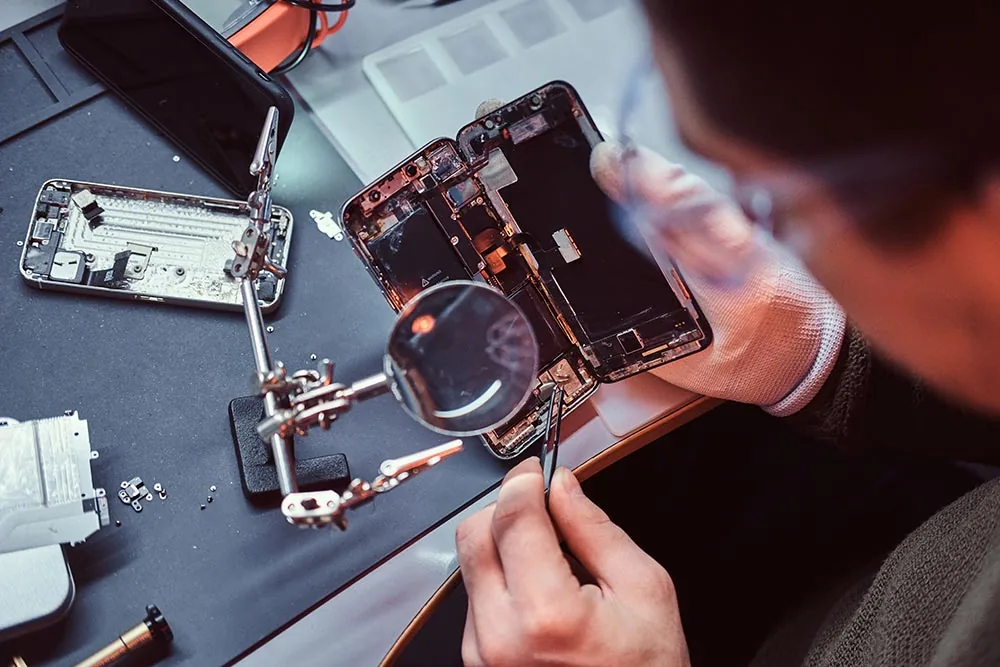
These faults sit under the display or on the board, so they call for opening the phone with the right tools. A trained technician can test each part, confirm which component failed, and replace only what is needed, instead of you guessing and risking further damage. Chasing a board-level audio IC fault at home almost always makes things worse.

Get Phone Speaker and Audio Repair in Orlando

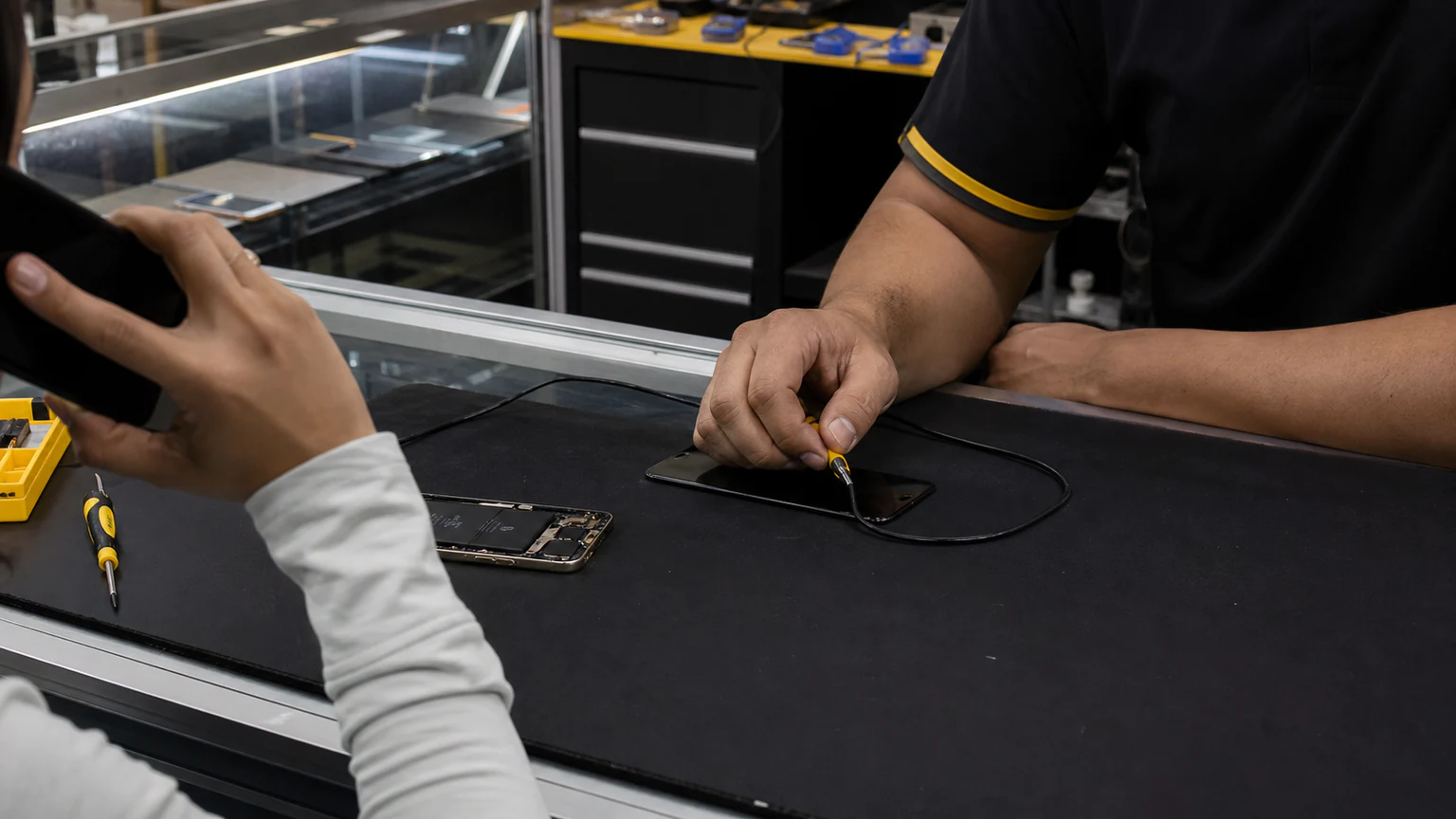
When the DIY checks run out, this is where to get it done. URPhone Store handles phone speaker repair in Orlando at 3 locations, covering silent earpieces, dead loudspeakers, muffled microphones, and the audio IC faults that follow drops and spills. For any other issue that showed up alongside the sound problem, our main phone repair in Orlando page routes you to the right service.

We service Apple, Samsung, Google Pixel, OnePlus, LG, Motorola, Nokia, TCL, Revvl, Xiaomi, and Redmi devices, and we are 4.9-star rated across our 3 Orlando locations. Here is what to expect:

  • A free diagnostic on speaker, mic, and audio problems (water damage is the one exception, at a $60 diagnostic credited toward the repair).
  • Speaker and earpiece repair from $50, depending on your model and the part.
  • Most repairs finished same-day when parts are in stock.
  • A 1-year warranty on parts and labor (does not cover new accidental or liquid damage after the repair).
  • Open Mon-Sat 9 AM-9 PM and Sun 10 AM-9 PM at all 3 stores.

Ready to get your call audio back? Book a Repair online or Call (321) 300-2023 and a technician will diagnose the sound problem and tell you exactly what it needs.

#AudioRepair #PhoneRepair #Orlando
US
URPhone Store Team

Written by the technicians and staff at URPhone Store, drawing on repairs done every day across our three Orlando-area locations. We are rated 4.9 out of 5 across more than 1,800 reviews, and every repair we write about is backed by our 1-year warranty on parts and labor.

Good to Know

Frequently Asked Questions

Why can I hear callers on speaker but not with the phone to my ear?
That points to the earpiece, the small top speaker you hold to your ear. First remove your case, clear the earpiece mesh of dust, and restart. If speakerphone still works but the earpiece stays silent, the earpiece speaker has likely failed and needs replacing.
Why can the other person not hear me on calls?
That is a microphone problem, not a speaker one. Clean the microphone ports, take off any case covering them, and test by recording a voice memo. If the recording is silent or faint, the mic or its flex cable needs service.
Can water damage cause no sound during calls?
Yes. Trapped water and corrosion on the audio components are a leading cause of muffled or missing call sound after a phone gets wet. Do not charge or heat the device; get it inspected, since our water damage repair service can clean corrosion before it spreads.
How do I clean my phone's earpiece and speaker safely?
Use a soft brush, a dry cotton swab, or a short burst of canned air to lift dust from the speaker and microphone mesh. Never poke the openings with a pin or needle, which tears the mesh and can damage the part underneath.
How much does speaker or earpiece repair cost in Orlando?
Speaker and earpiece repair starts from $50, depending on your model and which part failed. The diagnostic is free for audio faults, and most repairs are done same-day when parts are in stock, so you can usually walk out the same visit.
Should I repair or replace a phone with no call audio?
If the phone is otherwise healthy and paid off, a speaker or earpiece repair is far cheaper than a new device and often gets you working again the same day when parts are in stock. Replacement makes more sense only when the phone has several failing parts or major water and board damage stacked together.

Get Your Call Audio Fixed

If cleaning, restarting, and checking Bluetooth did not bring the sound back, the earpiece or speaker likely needs a repair. Free diagnostics, same-day service when parts are in stock, and a 1-year warranty on parts and labor across three Orlando locations.

Keep Reading

Related Guides