

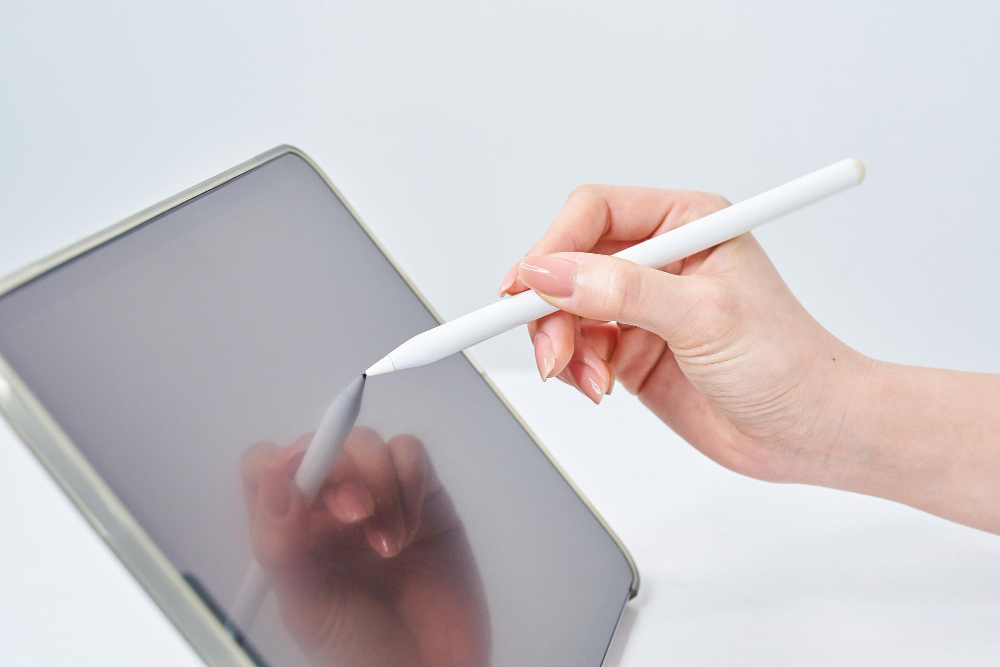
If you’ve just got an Apple Pencil, connecting it to your iPad is easier than you might think. Whether you want to take notes, draw, or annotate documents, a properly paired Apple Pencil makes your iPad experience seamless. In this guide, we’ll cover how to connect Apple Pencil to iPad, including pairing steps, testing, and troubleshooting.
Check Compatibility First
Before pairing, make sure your Apple Pencil matches your iPad model:
- Apple Pencil (1st generation): Compatible with iPad (6th–9th gen), iPad mini (5th gen), and iPad Air (3rd gen).
- Apple Pencil (2nd generation): Works with iPad Pro 11-inch (1st–4th gen) and iPad Pro 12.9-inch (3rd–6th gen).
Using an incompatible Pencil will prevent pairing, so it’s best to verify first.
Turn On Bluetooth
Your iPad uses Bluetooth to connect to the Apple Pencil. To enable it:
- Open Settings.
- Tap Bluetooth.
- Make sure the switch is on.
Bluetooth must be active for the Apple Pencil to connect.
Pair Your Apple Pencil
The pairing process differs depending on the Pencil generation:
Apple Pencil (1st Generation)
- Remove the cap to reveal the Lightning connector.
- Plug the Pencil into your iPad’s Lightning port.
- Tap Pair when prompted on your screen.
Apple Pencil (2nd Generation)
- Place the Pencil on the magnetic connector on the side of your iPad.
- Tap Pair when the prompt appears.
Once paired, your iPad will remember the Apple Pencil automatically.
Test Your Apple Pencil
Open an app like Notes or Procreate to confirm the Pencil is working. Draw or write to check responsiveness.
Troubleshooting Tips
Even with correct steps, connection problems can occur:
- Apple Pencil not connecting: Ensure it’s charged and Bluetooth is on. Restart your iPad if needed.
- Apple Pencil disconnects randomly: Detach and reconnect, or forget the device in Bluetooth settings and pair again.
- Apple Pencil not drawing: Check the tip isn’t loose. Tighten or replace if necessary.
Sometimes a simple iPad restart resolves any lingering connection issues.
Read related url on apple Blogs
Pair and charge Apple Pencil (USB-C) with iPad
Pair and charge Apple Pencil (2nd generation) with iPad
F.A.Q (First-Person)
Q: Why isn’t my Apple Pencil pairing with my iPad?
A: Usually, this happens when Bluetooth isn’t enabled or the Pencil needs charging. Reattaching or charging the Pencil often resolves the issue.
Q: Can I use my Apple Pencil while it’s charging?
A: Yes, the Apple Pencil works perfectly while charging once it is paired.
Q: Do I need to pair the Apple Pencil every time?
A: No, once paired, the Apple Pencil connects automatically whenever it is used.
Connecting your Apple Pencil to your iPad is simple when you follow the steps above. While this guide isn’t focused on repairs, sometimes connection issues can hint at hardware problems. In such cases, professionals who specialize in iPad Repair Orlando, FL can help troubleshoot and fix any deeper issues quickly.
For reliable iPad accessories, guidance, and support, URPhone Store is a trusted choice.